





 Português
  Inglês
  Espanhol
  4 min de leitura
  0 comentários


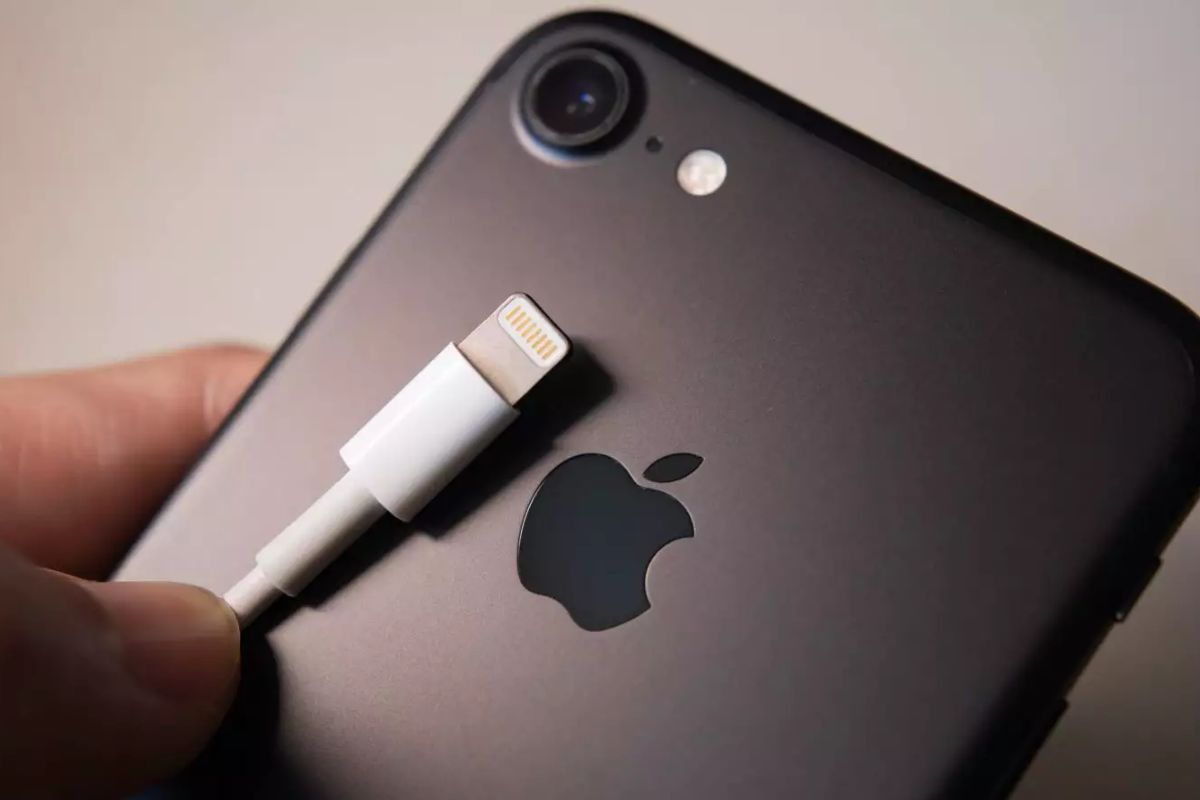
From Myths About Closing Apps to Automatic Settings That Work for You, This Is the Definitive Guide to Getting the Most Out of Your iPhone Battery.
The battery life is one of the biggest concerns for any smartphone user. Ending the day with power to spare seems like a luxury, but often, the solution lies in a series of small adjustments in your iPhone’s system that, combined, make a huge difference.
We have compiled 15 essential tips and adjustments based on how iOS works, so you can optimize your device and learn how to save iPhone battery smartly.
Myths and Fundamental Truths
1. Stop Closing Background Apps: This is the biggest myth. Swiping up and closing all the apps that are open does not save battery, it drains more. iOS is designed to freeze background apps, using very little memory and energy. Forcing closure makes the system reload the app from scratch the next time you open it, a process that consumes much more CPU and, consequently, more battery.
-
The world’s first octopus farm wants to open in the Canary Islands and is already provoking an international reaction: the plan aims to produce 3,000 tons per year.

-
Drought may be creating stronger superbugs in the soil and helping antibiotic resistance reach hospitals, warns a study highlighting a problem that could grow alongside extreme weather.

-
The biggest scam in history: Napoleon’s France deceived the United States by selling them a territory that was Spanish.

-
Why is the Danakil Desert so dangerous? It has unstable terrain and how extreme temperatures and toxic gases turn the region into one of the most hostile environments on Earth.


2. Analyze Energy Consumption: First and foremost, run a diagnosis. Go to Settings > Battery. Scroll down and see the list of apps by consumption. There you will find the “villains” that drain your energy the most. Identifying if a specific app is consuming a lot of background energy is the first step to take action, such as limiting its usage or permissions.
System Adjustments and Automation
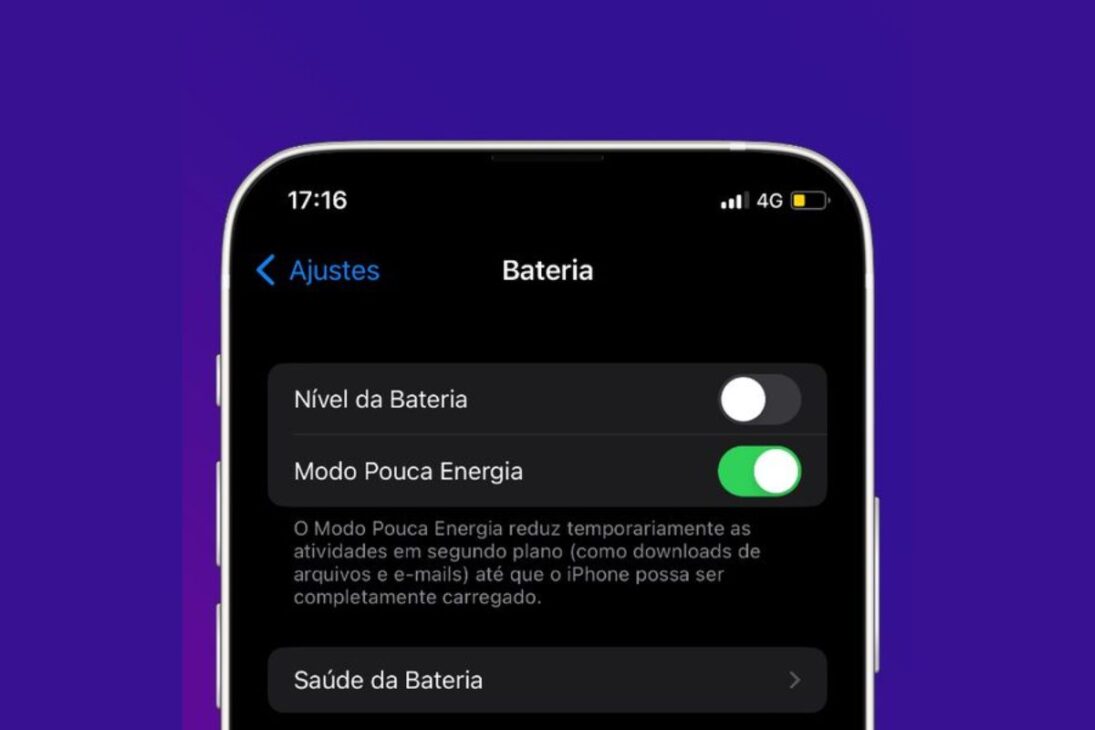
3. Automate Low Power Mode: The Low Power Mode is a fantastic feature that reduces background activities. But you can make it even better.
- In the Shortcuts app, go to Automation > Create Personal Automation > Battery Level.
- Set a level (e.g., “When it falls below 50%”) and add the action “Set Low Power Mode” as “On”.
- Uncheck the option “Ask Before Running”.
- Done. Your iPhone will enter power-saving mode automatically, without you having to remember.
4. Keep Apps Updated: Developers are constantly optimizing their apps for new versions of iOS. Keeping your apps updated ensures that they run as efficiently as possible, fixing bugs that could cause excessive battery drain.
5. Disable Background App Refresh: This may seem contradictory to the previous tip, but it’s not. The automatic update of app content is a major energy consumer.
- Go to Settings > General > Background App Refresh.
- You can turn off the feature completely or, more intelligently, disable it individually for apps that don’t need constant updating (social media, games, etc.).
Screen and Interface Adjustments
6. Use Dark Mode (on OLED Screens): If your iPhone has an OLED screen (iPhone X and later, except XR and 11), using Dark Mode saves a lot of energy. On OLED screens, black pixels are literally turned off pixels. The more black your screen is, the less energy it consumes. On LCD screens, this energy saving does not occur, as the entire screen is backlit.
7. Manage Screen Brightness: A screen at maximum brightness is one of the biggest battery villains.
- In Settings > Accessibility > Display & Text Size, enable Auto Brightness. This allows the iPhone to adjust brightness according to the ambient light, saving energy most of the time.
8. Disable Keyboard Haptic Feedback: The subtle vibration with every key pressed is nice, but it drains energy from the Taptic Engine. To disable it, go to Settings > Sounds & Haptics > Keyboard Feedback and disable the “Haptic” option.
Connectivity Adjustments
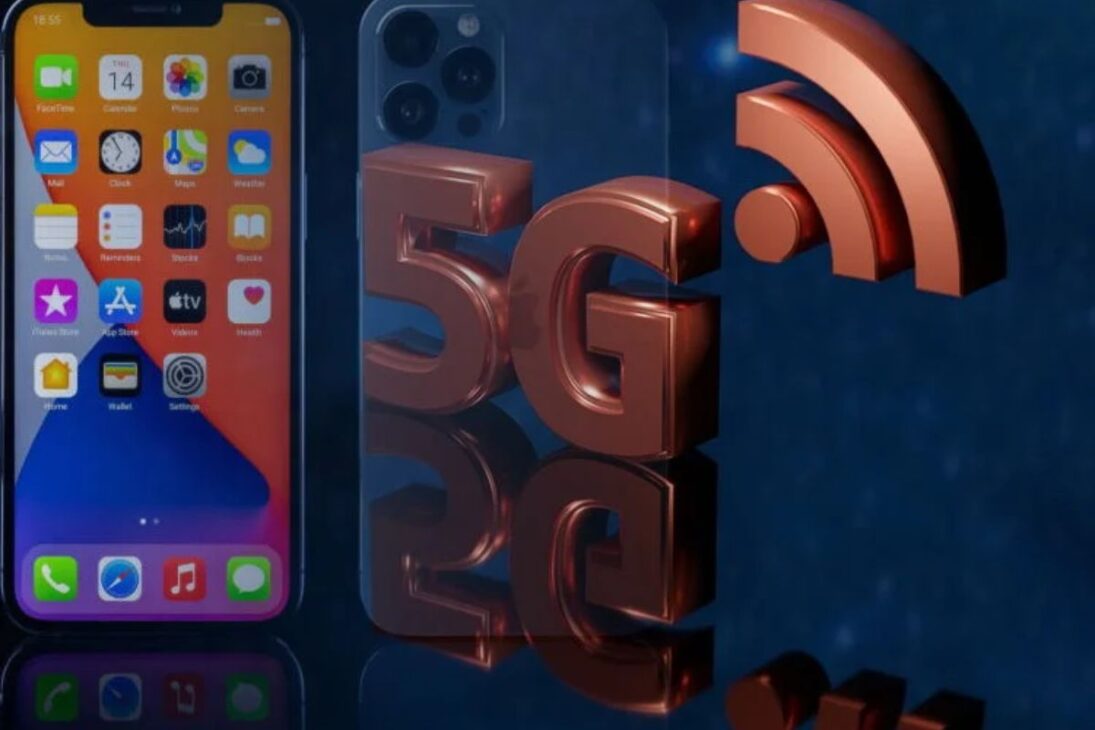
9. Optimize 5G and Data Mode:
- In Settings > Cellular > Voice Data Options, select “5G Auto”. The iPhone will use 5G only when necessary, prioritizing 4G to save battery.
- On the same screen, go to Data Mode and select “Low Data Mode” to reduce consumption on mobile networks.
10. Disable Wi-Fi Assist: This feature uses your mobile data to “help” a weak Wi-Fi signal, which can drain battery without you noticing. Disable it in Settings > Cellular, scrolling to the bottom of the screen.
11. Turn Off AirDrop When Not in Use: Keeping AirDrop always on makes the iPhone constantly search for other devices. Go to Settings > General > AirDrop and select “Receiving Off”. Turn it on only when you are going to use it.
Siri and Location Settings
12. Turn Off “Hey Siri”: If you don’t use the voice command frequently, turning it off prevents the microphone from being constantly on. Go to Settings > Siri & Search and disable the “Listen for ‘Hey Siri’” option. You can still use Siri by holding the side button.
13. Disable Call and Notification Announcements: Features that make Siri read who’s calling or your notifications aloud consume unnecessary energy. Disable it in Settings > Siri & Search > Announce Notifications.
14. Manage Location Services: This is a crucial setting. In Settings > Privacy & Security > Location Services, review the list of apps. Change the permission for most to “While Using the App” or “Never”. Very few apps really need your location all the time.
The Physical Factor


15. Check Battery Health: Finally, no software tip works miracles if the hardware is compromised. Go to Settings > Battery > Battery Health & Charging. If the “Maximum Capacity” is below 80%, the battery is already considered worn out and its ability to hold a charge is significantly reduced. In this case, the best solution is to consider replacing it at an authorized Apple service center.
What’s your most memorable memory of Windows XP? Was it Pinball, MSN Messenger, the error sound, or the wallpaper? Tell us!









-

Uma pessoa reagiu a isso.