





 Portuguese
  English
  Spanish
  4 min of reading
  0 comments



Many People Don’t Know, But WhatsApp Creates Daily Copies of Your Messages That Are Saved on the Device in the “Databases” Folder, and They May Be Your Only Salvation to Recover a Lost History.
Did you know that your Android phone keeps backups of your WhatsApp that may not be in the cloud? While many worry about backup on Google Drive, the app discreetly maintains a folder called “Databases”, which stores the files with your message history. This is where your deleted WhatsApp conversations may be.
This “secret” folder is a powerful and little-known tool. It stores not only the most recent backup but also a history of the last seven days, allowing for data recovery that the cloud backup does not typically offer. Understanding how this folder works, how to manage it to free up space, and how to use it to restore messages is essential for having complete control over your data.
Where Deleted WhatsApp Conversations Are Stored
The “Databases” folder is the place where deleted WhatsApp conversations are located and saves local backup files. On newer phones, the path to find it using a file manager is: Internal Storage > Android > media > com.whatsapp > WhatsApp > Databases.
-
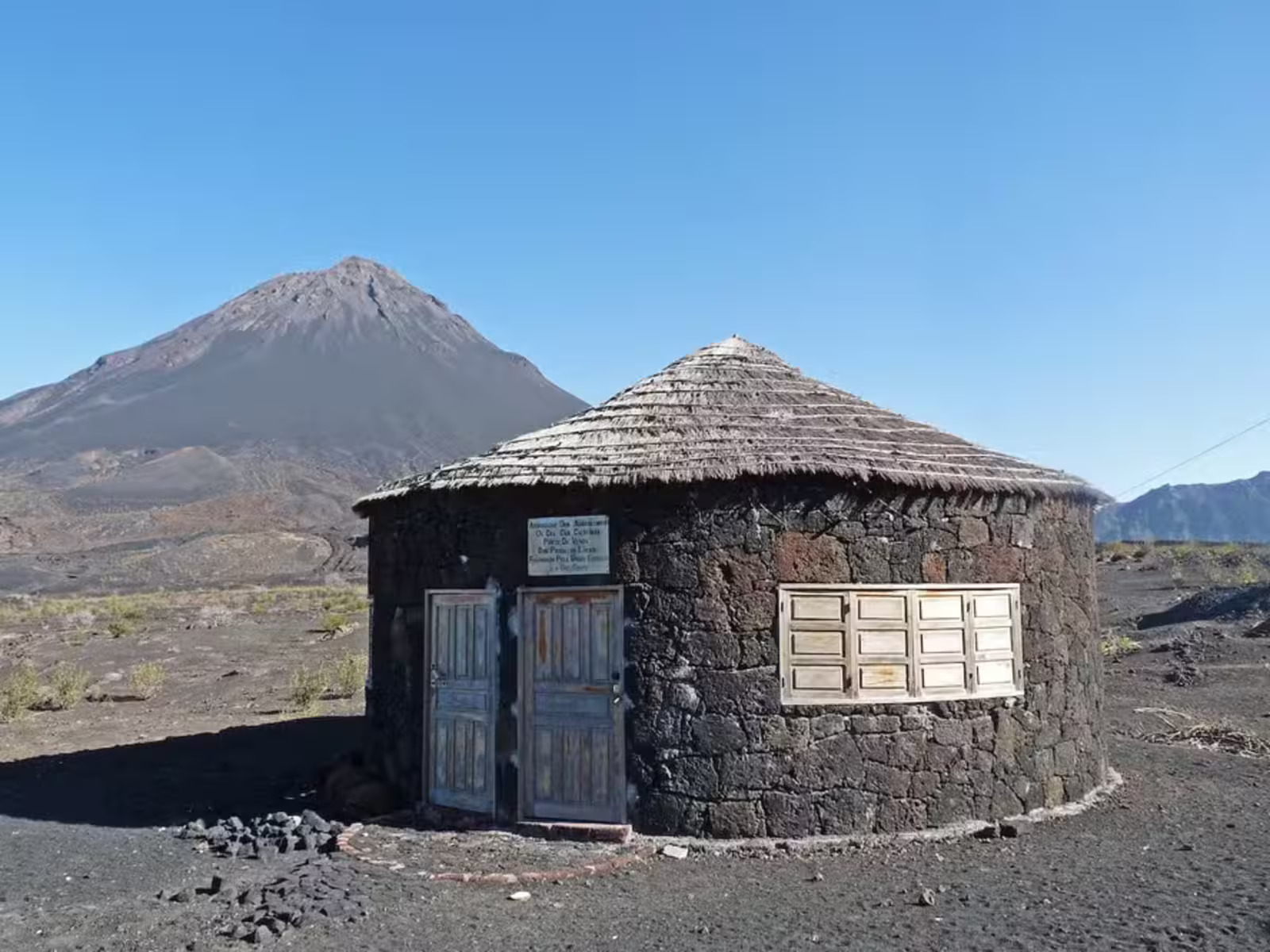
Inside an active volcano in Africa, residents use volcanic rocks to build houses in an impressive setting.
-
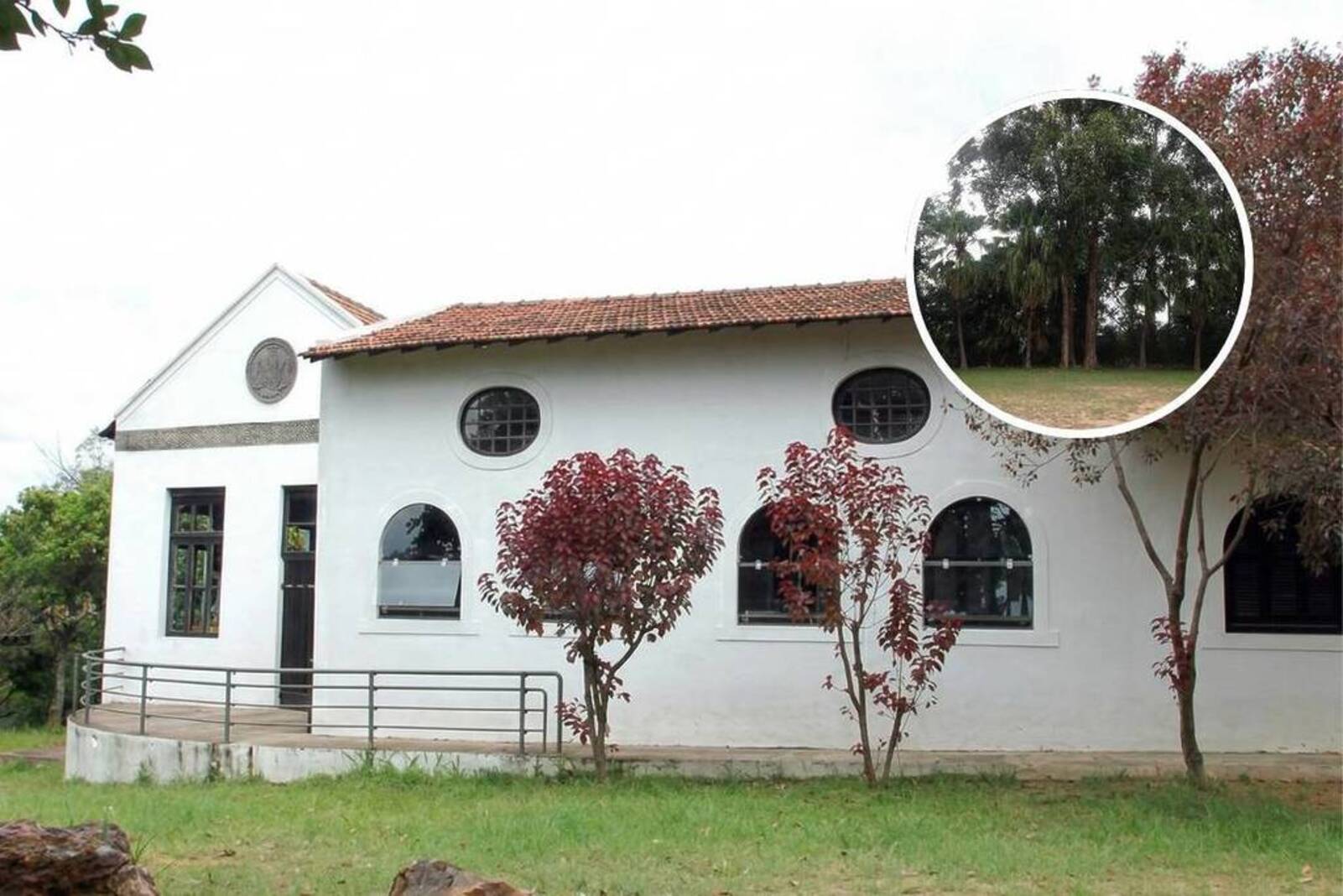
After 14 years of waiting, a rammed earth mansion built in 1702 in the North Zone of São Paulo will become a park with leisure facilities and green areas, with a million-dollar investment.
-
With 2 unfinished nuclear reactors, up to 25 billion in costs, and proven fraud, the Nukegate case has left 800,000 consumers still paying today for energy that will never be produced.

-
Expedition 501: Scientists drill into the ocean floor and discover a giant reserve of fresh water hidden beneath the sea, extracting nearly 50,000 liters and revealing an invisible system that could reshape the map of water scarcity.


Inside it, you will find two types of files:
msgstore.db.crypt15: This is the main and most recent backup file. The number at the end (14, 15, etc.) indicates the version of encryption used.
msgstore-AAAA-MM-DD.1.db.crypt15: These are the daily backups. WhatsApp saves files from the last seven days, and the date in the filename helps identify them.
It is important to know that these files contain only text messages. Media (photos, videos, and audios) are stored in a separate folder called “Media”.
How WhatsApp Automatically Creates Local Backups Every Day at 2 AM

The local backup process is automatic and daily. Every day, around 2 AM, WhatsApp creates a new backup of your conversations and saves it in the “Databases” folder. This happens regardless of your backup settings on Google Drive.
Even if you have disabled cloud backup, the app will continue to create this backup on your device, ensuring an extra layer of protection.
When you force a manual backup through the app, it first updates the local file before sending it to the cloud.
Step-by-Step to Delete Old Backups and Free Up Space on Your Phone
Backup files can take up a considerable amount of space on your phone, reaching several gigabytes. To free up memory, you can delete the older files, but caution is needed.
Use a file manager to access the “Databases” folder.
Identify the files by the name msgstore-AAAA-MM-DD.1.db.crypt15.
Select the files with the older dates that you wish to remove.
Attention: never delete the file msgstore.db.crypt15 and, for safety, always keep the backup dated from the previous day. Deletion is permanent and does not go to the trash.
How to Use a Local Backup to Recover Deleted WhatsApp Conversations
Recovering deleted WhatsApp conversations using a local backup is a more manual process, but it can save a history that is not in the cloud.
Prepare the file: in the “Databases” folder, find the backup from the day you want to restore (e.g., msgstore-2025-06-10.1.db.crypt15).
Rename the file: change the name of the chosen file to exactly msgstore.db.crypt15. It is crucial not to alter the extension number (.crypt15, in this case).
Uninstall and reinstall WhatsApp.
“Trick” the app: before setting up your number, turn your phone on airplane mode. This prevents WhatsApp from finding the Google Drive backup and forces it to look for the local file you renamed.
Restore: follow the on-screen instructions. The app will find the local backup and ask if you wish to restore it. After the process, you can turn off airplane mode.
Local Backup or in the Cloud (Google Drive)? Understand the Differences and Risks of Each


Both backup methods complement each other but have important differences.
Local Backup:
Advantage: saves the last seven days, allowing you to recover older versions of the conversations. Does not require internet for restoration.
Disadvantage: takes up space on the phone. If you lose or break the device, you lose the backup as well.
Backup on Google Drive:
Advantage: saves your data in the cloud, protecting it from loss of the phone.
Disadvantage: only saves the most recent version, overwriting the previous one. If you make a backup after mistakenly deleting a conversation, you won’t be able to recover it from the cloud.
The ideal scenario is to use both. Keep the cloud backup activated in case of an emergency with your device and know that to recover deleted WhatsApp conversations from previous days, the “Databases” folder on your phone is your best chance.






Seja o primeiro a reagir!