





 Portuguese
  English
  Spanish
  4 min of reading
  0 comments


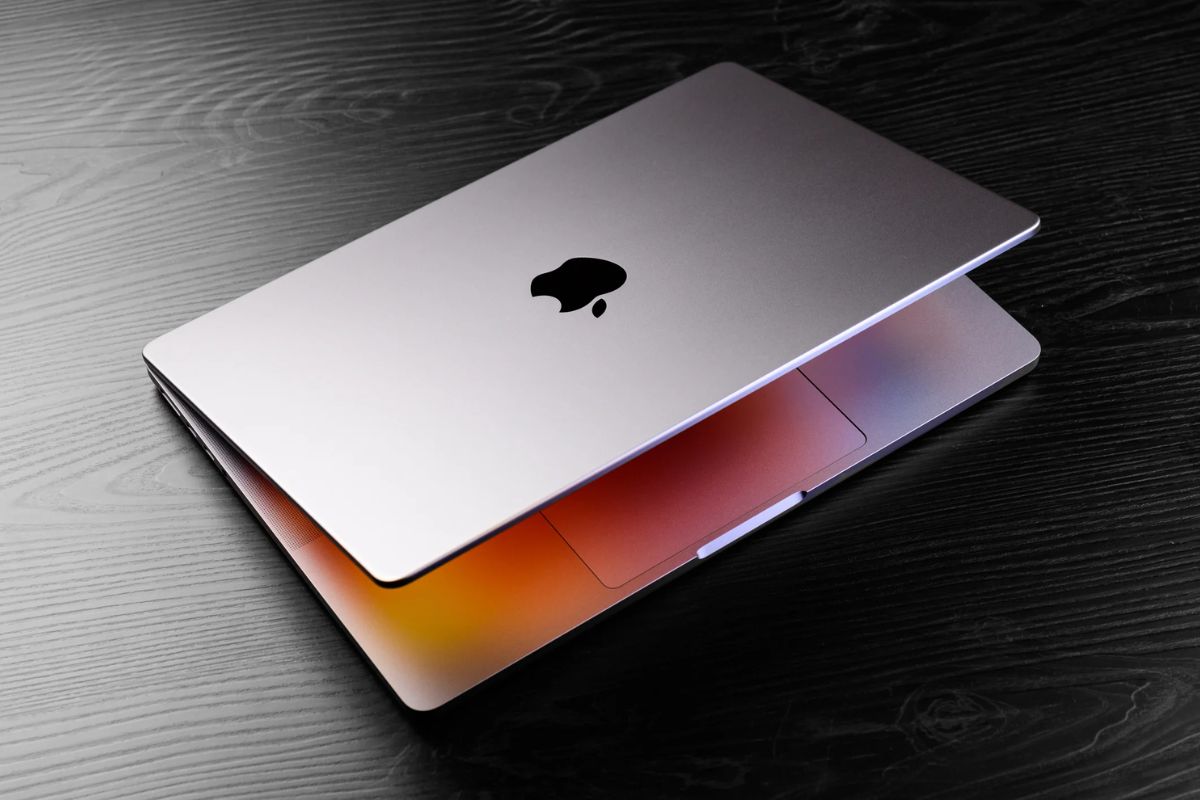
From Configuring the Trackpad to Using Productivity Shortcuts, Here are Essential Tips to Transform Your First Experience with Your New MacBook and Make It Perfect for Your Use.
You finally bought your long-awaited MacBook. Unboxed it, turned it on and… found everything strange? The mouse scroll is inverted, the trackpad click is different, and you can’t find the “Ç” on the keyboard? Don’t worry, you’re not alone. The transition to Apple’s system, especially for those coming from Windows, can be a bit confusing at first.
According to tips from experts and experienced users, there are some simple settings that can completely transform your usage experience. Below, we list 8 things you should do as soon as you turn on your MacBook for the first time.
1. The Trackpad Click: Enable “Tap to Click”
By default, the MacBook requires you to press the trackpad with some force to register a click. However, you can enable the tap-to-click feature, just like on most Windows laptops.
-
There is a gap of hundreds of kilometers between weather observation points in the United States, and now drones flying at 6,000 meters altitude in strong winds are filling this gap to predict tornadoes before they kill.

-
The most famous volcano in the world could paralyze one of the largest metropolises on the planet: Japan accelerates emergency plans for the eruption of Mount Fuji, which could bury Tokyo in ash for over two consecutive weeks.

-
The United States has a serious problem with its F-35s: China is already producing fighters at a pace that exceeds American capacity and could manufacture up to 300 aircraft per year before the end of the decade, shifting the global military balance.

-
Remains with battle wounds of over 100 soldiers from the Roman Empire are found beneath a football field in Vienna, leaving everyone surprised.


- How to do it: Go to “System Settings” > “Trackpad” and enable the “Tap to Click” option. Done, now a simple tap works like a click.
2. The Inverted Scrolling: Disable “Natural Scrolling”
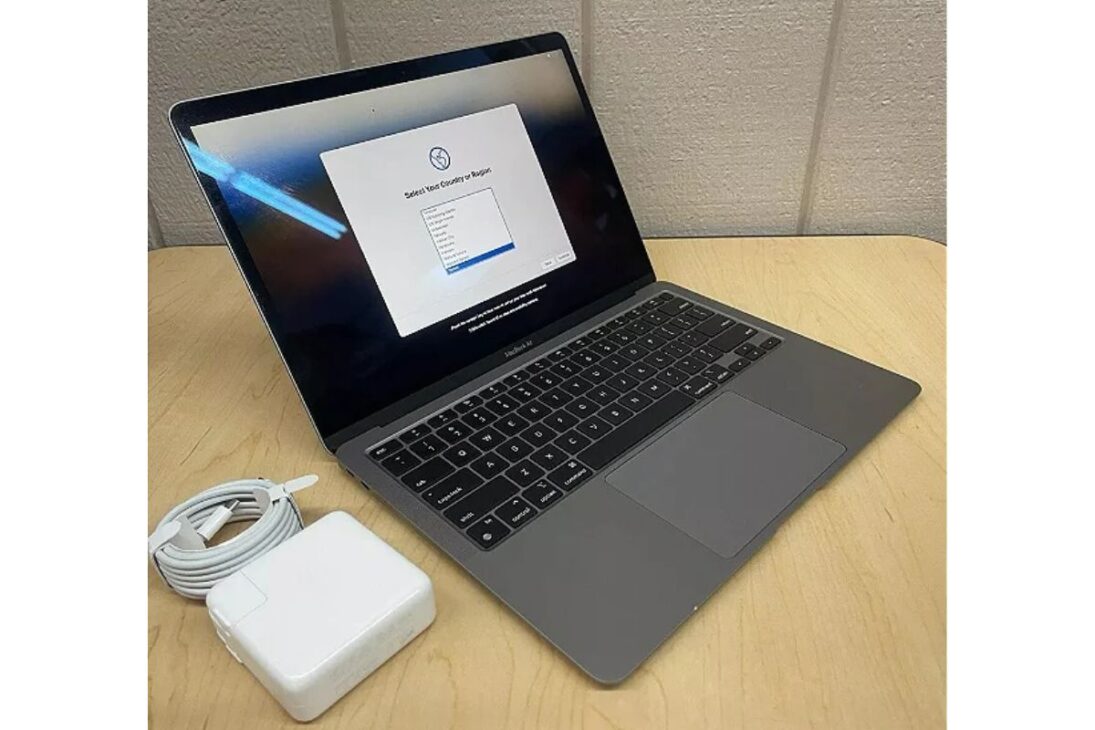
If you swipe down on the trackpad and the page scrolls up, it’s due to “Natural Scrolling.” To make the motion behave like Windows:
- How to do it: In the same “System Settings” > “Trackpad”, go to the “Scroll and Zoom” tab and disable the “Natural Scrolling” option.
3. No “Ç” on the Keyboard? Fix it with the ABNT2 Setting
Many MacBooks bought outside the official Apple store in Brazil come with a US keyboard layout, lacking the “Ç” key. Fixing this is easy.
- How to do it: Go to “System Settings” > “Keyboard”. In the “Text Input” section, click on “Edit”. Add the “Brazilian – ABNT2” layout and remove the others.
- How to use: Now, the key next to the “L” becomes the “Ç.” For the question mark (?), use the combination “Option + W.”
4. Low Space? Invest in an External SSD
Upgrading the internal storage of a MacBook at the time of purchase is very expensive. The smartest and most economical solution is to use an external SSD.
- Tip: Buy an external SSD with USB-C (Thunderbolt) connection, such as those from SanDisk. They are extremely fast and allow you to install files, programs, and even games, freeing up space on your Mac’s internal storage.
5. Master the Webcam: Use “Center Stage” and Portrait Mode
The latest MacBooks, such as the Air M4, come with an excellent 12 MP webcam and smart features. During any video call (whether on FaceTime, Zoom, or Google Meet), a green camera icon will appear in the top menu bar.
- How to do it: Click on that icon to open the settings. There, you can enable “Center Stage” (which keeps you centered in the image), “Portrait Mode” (which blurs the background), and “Studio Light.”
6. Create Shortcuts with “Hot Corners”
This is a powerful productivity tip. You can set each of the four corners of the screen to perform an action when you move the mouse cursor there.
- How to do it: Go to “System Settings” > “Desktop & Dock.” Scroll to the bottom and click on “Hot Corners.” You can configure the corners to start the screensaver, lock the MacBook, open Mission Control, and much more.
7. Customize the Menu Bar
The menu bar, which sits at the top of the screen, can be customized to include the shortcuts you use the most.
- How to do it: Open the “Control Center” (the icon with two “switches” next to Siri). Click and drag any of the icons, such as Bluetooth or Wi-Fi, directly to the menu bar. It will be pinned there for quick access.
8. Learn the Essential Trackpad Gestures

The trackpad on the MacBook is one of its best tools. Learning the basic gestures can greatly speed up your work.
- Mission Control: Swipe three or four fingers up to see all your open applications and windows.
- Switch Desks (Desktop): Swipe three or four fingers left or right to switch between virtual desktops.
- View All Gestures: Go to “System Settings” > “Trackpad” to see demonstration videos of all available gestures.
And you, do you have any essential tips for those starting in the world of MacBook? Leave your suggestion in the comments!









-

Uma pessoa reagiu a isso.