





 Portuguese
  English
  Spanish
  3 min of reading
  0 comments


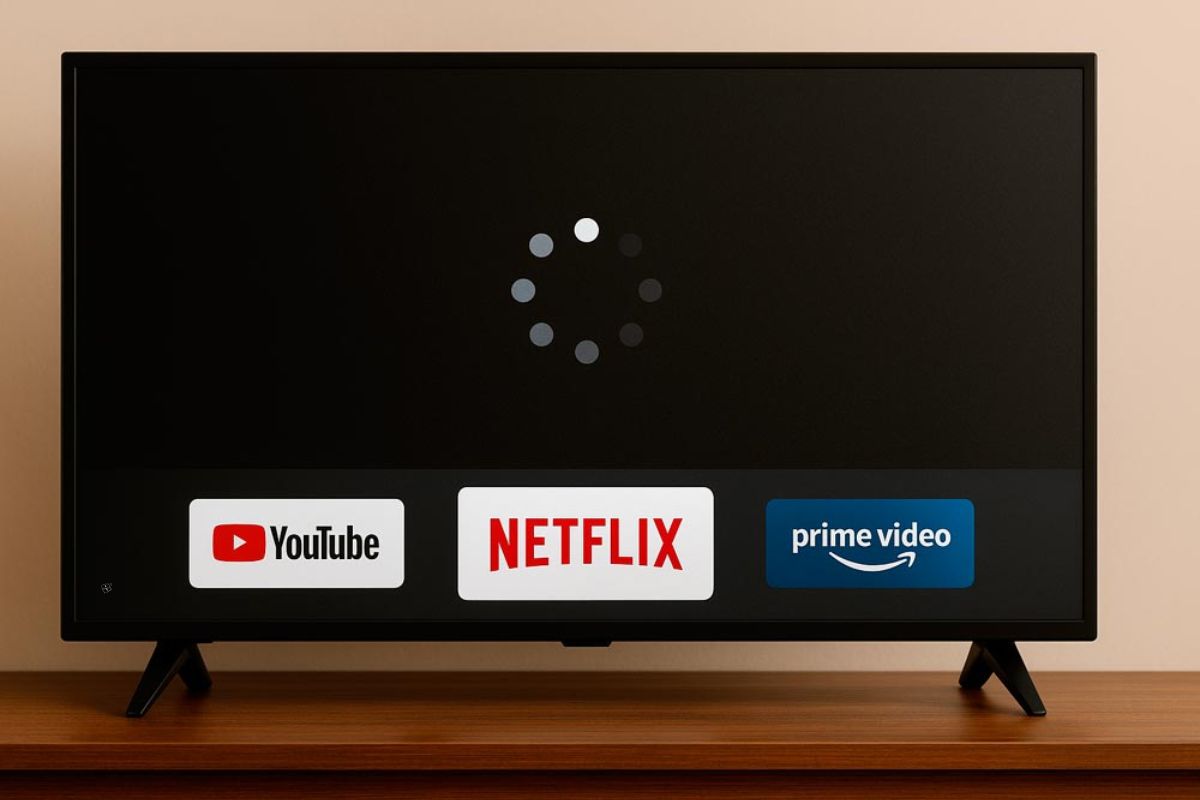
If Your LED TV Freezes Or Takes Time To Respond Whenever You Try To Open An App, Know That This Is A Situation More Common Than It Seems — And Fortunately There Are Simple Ways To Solve It.
The freezing can be related to different causes: from storage limitations and software errors to internet issues or overheating. Understanding the root of the problem is essential to fix it and prevent it from happening again.
Next, we explain the most frequent reasons and how to fix each of them in a practical way.
Insufficient Or Overloaded Storage
Smart TVs, even advanced models like the best 75-inch TV 2025, have limited storage space. When too many apps are installed or open at the same time, the system can slow down or stop responding.
-
China’s neighbor has a plan to gather thousands of kamikaze drones and cheap missiles with a range of over 1,000 km, putting both Shanghai and Taiwan within striking distance.

-
Ancient boreal forests in Sweden reveal a climate secret by storing 72% more carbon than managed areas, proving that soil preservation is much more effective against global warming than commercial replanting.

-
Ultrafast laser technology reaches 360 Gbps with half the energy consumption of Wi-Fi and promises to revolutionize internal connectivity by eliminating interference and congestion in the radio spectrum.
-
Scientists find gigantic lava fields in an active underwater volcano, and the discovery draws attention to what is happening on the ocean floor.


How To Solve:
- Remove apps that you no longer use.
- Clear the cache in the internal settings.
- Avoid opening multiple apps simultaneously.
- If possible, use a compatible external storage device to relieve internal memory.
Outdated Operating System
Keeping the TV software updated is essential to ensure it runs recent apps without compatibility issues. Older versions may have bugs and instability.
How To Solve:
- Access the settings menu and look for system updates.
- Enable automatic updates, if this function is available.
- If in doubt, consult the official website of the manufacturer and follow the step-by-step instructions.
Cache And Accumulated Temporary Files
Over time, the TV accumulates temporary data that can slow down the system and cause app execution failures.
How To Solve:
- Clear the cache regularly.
- Restart the TV at least once a week to free resources.
- Use cleaning tools that the manufacturer provides in the system.
Corrupted Or Outdated Apps
A single problematic app can already compromise the overall performance of the device.
How To Solve:
- Keep all apps updated.
- If an app is causing freezes, uninstall it and reinstall it.
- Check if other users are experiencing the same error with that app.
Unstable Or Slow Internet Connection
Streaming services and other online apps depend on a stable connection to function. If the internet is weak, the TV may seem to freeze.
How To Solve:
- Run a speed test to check the quality of the connection.
- Restart the router periodically.
- Use a network cable (Ethernet) whenever possible.
- Keep the router close to the TV or use signal repeaters.
Possible Hardware Failures
If the problem is not software-related, the source may be in the internal components of the TV.
How To Identify:
- Check for overheating or unusual noises.
- Test other functions of the TV to see if the freezing is general.
- Seek authorized technical assistance for diagnosis.
Overheating
High temperatures can reduce performance and even turn off the device.
How To Solve:
- Ensure good ventilation around the TV.
- Do not install it in closed spaces or under direct sunlight.
- Use fans specifically designed for electronics, if necessary.
Conflicting Settings
Inadvertent changes in the settings can generate incompatibilities that result in freezes, even in more modern models, like the best 50-inch TV 2025.
How To Solve:
- Restore network and image settings to their original defaults.
- In more serious cases, perform a factory reset (with prior backup).
- Follow the user manual for safe adjustments.
Apps Incompatible With The TV Model
Not all apps are optimized for all Smart TV models or systems. Installing incompatible apps can result in freezes and malfunctions.
How To Solve:
- Download only apps from the official store of your TV.
- Check app compatibility before installation.
- If the desired app is not officially available, look for similar compatible alternatives.
How To Prevent Freezing In The Future
- Regularly clean up memory and unnecessary files.
- Always keep the system and apps updated.
- Avoid installing non-essential apps.
- Protect your TV from dust, excessive heat, and power outages.
By following these guidelines, it is possible to increase the lifespan of your LED TV and enjoy faster and more stable performance, without frustrations when watching your favorite content.





Seja o primeiro a reagir!