






 Portuguese
  Spanish





With Different Privacy Features, WhatsApp Allows Users to Hide Sensitive Data, Limit Calls from Unknown Numbers, and Restrict Who Can Add the User to Groups, Offering Greater Control Over the Exposure of Personal Information.
Users who want to preserve their privacy on the WhatsApp have various tools that allow them to hide personal information in the app.
Available for Android and iPhone (iOS) systems, WhatsApp offers features that increase data protection and limit access to photos, statuses, and other sensitive content by unauthorized individuals.
With the feature commonly referred to as “Hidden Mode”, it is possible, for example, to prevent the profile picture from being seen by strangers, mute unwanted calls, and even restrict group additions.
-
Cassini Discovers Fresh Organic Molecules Emanating from Enceladus’ Hidden Ocean, Making Saturn’s Icy Moon a Prime Target in the Search for Extraterrestrial Life

-
Scientists Discover Simple Fluids Can Shatter Like Solids Under Extreme Force, Challenging Our Understanding of Matter

-
Xiaomi to Launch Robot Vacuum 6 Max Globally: Features 85°C Mop Cleaning, 35,000 Pa Suction, Extendable Arms, AI with 3 Cameras, and 6 cm Obstacle Clearance
-
Engineers Develop Jacket That Converts Air Humidity Into Drinkable Water, Producing Up to 900 ml Daily for Hikers, Campers, Rescuers, Rural Workers, and Military in Remote Areas



Next, check how to configure each step to enable the Hidden Mode on WhatsApp and ensure more security in your online conversations.
Among the main options to make WhatsApp more secure are: hiding the profile picture, restricting who can view contact information, blocking calls and messages from unsaved numbers, in addition to limiting who can add the user to groups.
The set of these measures reduces the risk of scams and improper exposure of personal data, a scenario increasingly relevant given the rise in attempts at fraud through messaging apps.
Privacy Features in WhatsApp
WhatsApp gathers functions aimed at privacy, which can be activated directly in the app’s settings.
See below how each of these options can be used to activate “Hidden Mode” and understand why each step is important to protect personal information.
How to Hide the Profile Picture on WhatsApp
The image displayed on the profile is one of the main gateways for social engineering scams, where criminals use others’ photos to create fake accounts and deceive contacts.
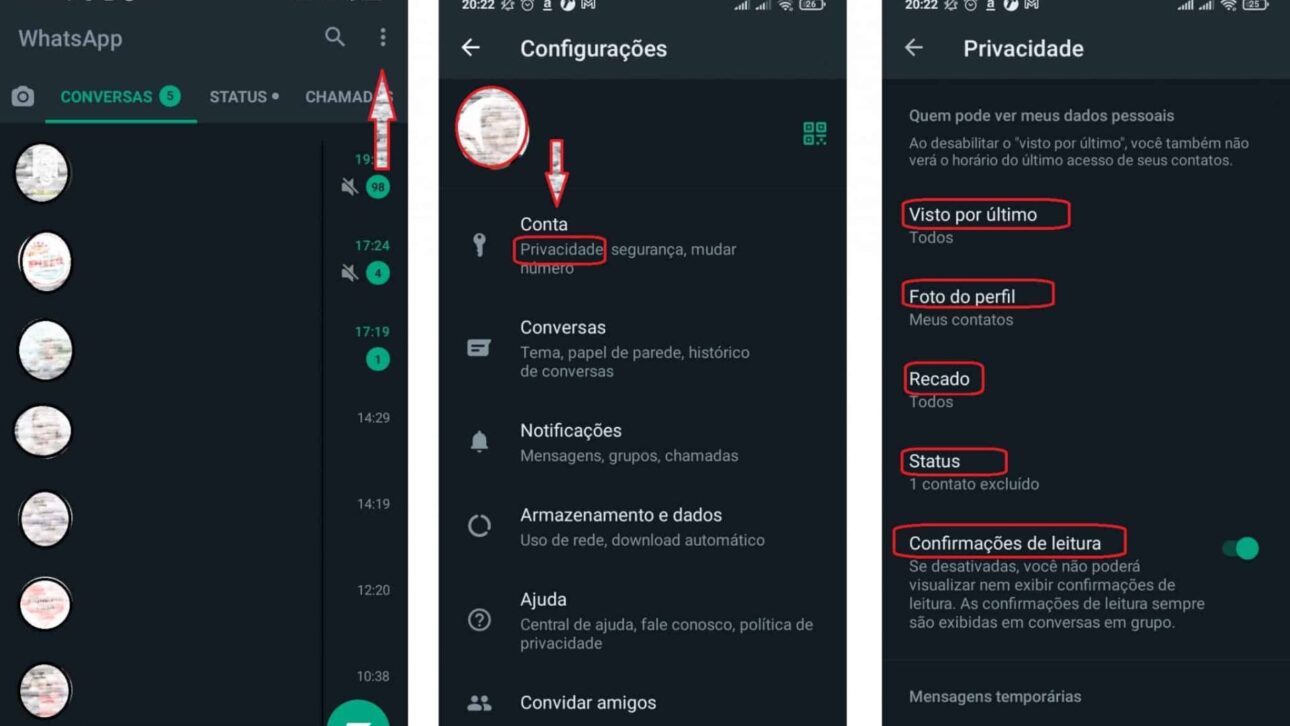
To avoid this type of problem, simply access the WhatsApp settings, select the “Privacy” section, and then the “Profile Picture” option.
The user can decide whether to display the photo only to saved contacts or choose to hide it from everyone.
By selecting “Nobody”, the photo will not be visible to any user on the platform.
Hide Contact Information and Sensitive Data
Another fundamental layer of protection involves the data displayed on the profile, such as status, links, and Pix, an instant payment system created by Brazil’s Central Bank.
To hide this information, simply access the “Privacy” menu again and, in each of the options (“Status,” “Links,” and “Pix”), select who can view the data.
The options vary between “Everyone,” “My Contacts,” or “Nobody.”
By restricting to “My Contacts” or “Nobody”, the user reinforces control over who can access sensitive details.
Block Calls from Unknown Numbers
With the rise of phone scams, WhatsApp implemented an option to mute calls from numbers not saved in the phone’s contacts.
To activate this feature, simply access the “Privacy” section, locate the “Calls” area, and enable the “Mute Unknown Numbers” function.
This way, calls from unsaved numbers will not disturb the user, being automatically blocked by the app.
Block Messages from Unsaved Accounts
In addition to calls, it is also possible to block messages sent by accounts that are not on the contact list.
To do this, the user should go to “Advanced Settings” within the “Privacy” tab and activate the “Block Messages from Unknown Accounts” option.
This feature helps to avoid receiving unwanted messages, especially from unknown contacts or spam campaigns.
Limit Who Can Add to Groups
Another important point for security is the control over who can add the user to WhatsApp groups.
Often, people are added to unwanted groups without consent, which can expose personal information to strangers.
To avoid this situation, within the “Privacy” tab, access the “Group” option and select “My Contacts”.
This way, only people already saved in the contacts can add the user to new groups.
Why Activate WhatsApp’s Hidden Mode?
Implementing these settings provides an extra layer of digital security, significantly reducing the chances of exposure of personal information and limiting opportunities for approaches by malicious individuals.
According to recent data from digital security institutions, scams via messaging apps continue to grow in Brazil, making the adoption of WhatsApp’s Hidden Mode a recommended preventive measure by specialists.
Moreover, by limiting the visibility of the profile picture, status, and contact information, the user maintains greater control over their digital identity.
Blocking calls and messages from unknowns helps to avoid interruptions and reduces exposure to attempts of fraud or phishing, where criminals seek to obtain sensitive data through deception.
It is important to remember that all mentioned settings can be reversed at any time.
If the user wishes to make their profile visible to everyone again or receive calls from any number, simply change the options within the app’s privacy settings.
Step-by-Step to Activate WhatsApp’s Hidden Mode
- Hide Profile Picture:
Open WhatsApp, tap the three dots in the upper right corner and access “Settings.”
Then go to “Privacy” and then to “Profile Picture.”
Choose between “My Contacts” or “Nobody”. - Restrict Contact Information:
Still in “Privacy,” adjust the options “Status,” “Links,” and “Pix” to “My Contacts” or “Nobody”, according to your privacy preference. - Block Calls from Unknown Numbers:
In the “Privacy” area, scroll to “Calls” and enable “Mute Unknown Numbers”. - Block Messages from Unsaved Accounts:
Access “Advanced Settings” in “Privacy” and enable “Block Messages from Unknown Accounts”. - Limit Who Can Add to Groups:
Within “Privacy,” access “Group” and select the “My Contacts” option.
WhatsApp remains committed to expanding privacy options, continuously updating its features.
Therefore, it is recommended that users periodically check the settings to take advantage of all available functionalities.
Have you adopted any of these measures in your app? Share in the comments which protection strategies you consider essential in your daily online activity.


