






 Portuguese
  Spanish


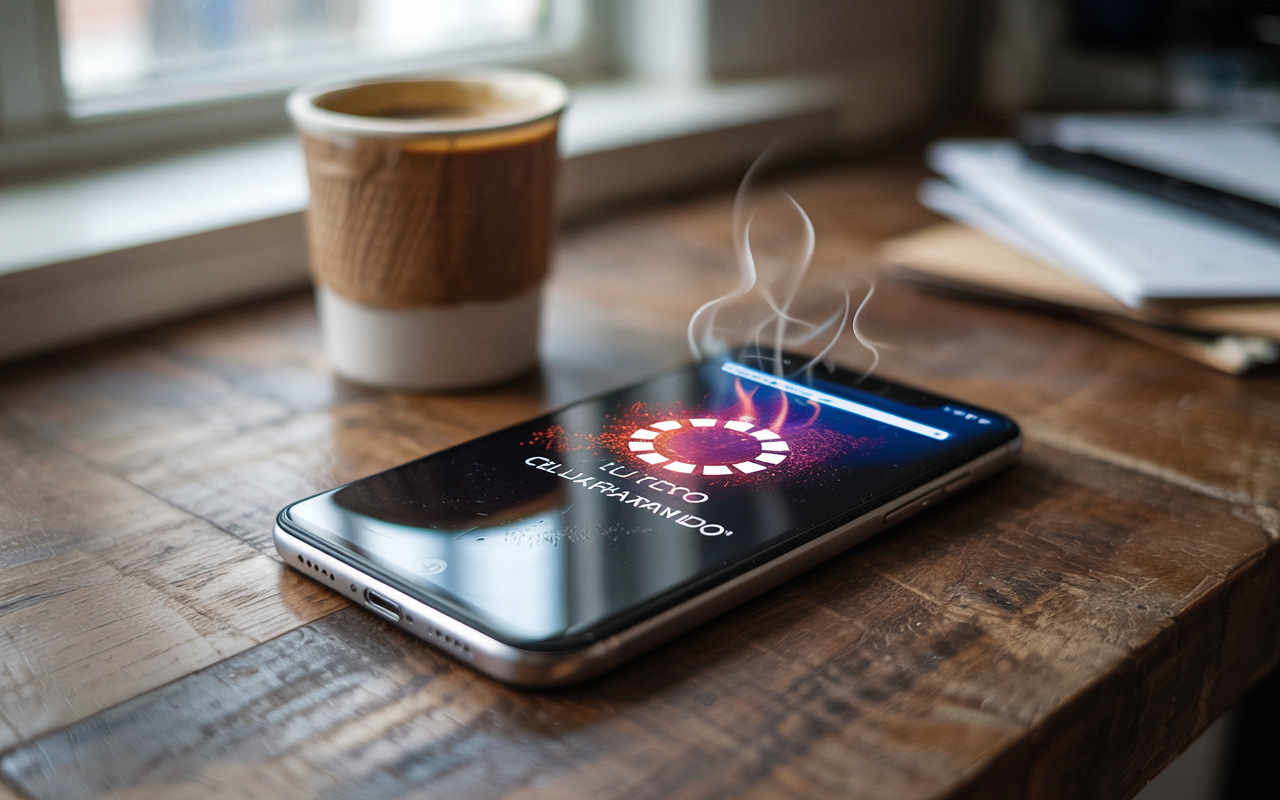


Cell Phone Freezing or Overheating? See Practical Tips to Improve Your Smartphone Performance and Extend Its Lifespan Before Upgrading.
It’s always the same story: you buy a new cell phone, fast, responsive, that seems capable of lasting for years. But after a while, it starts to stutter, slow down, freeze with simple tasks, and worse, overheat for no apparent reason. The temptation is to think about upgrading immediately — but is it really necessary? The truth is that every smartphone loses performance over time, whether Android or iPhone. The reason is not just the aging of the hardware but also the accumulation of useless files, poorly optimized apps, and settings that weigh down the system. The good news: you can reverse much of this with a few simple actions.


Next, we gathered practical tips to extend the life of your cell phone, reduce stuttering, and improve daily performance — without spending a dime.
Cell Phone Freezing? Restart Your Phone Regularly
It seems basic, but many people leave their phone on for weeks without restarting it. This habit causes background processes to accumulate, consuming memory and energy without you noticing.
-
Antarctic Mystery: Study Uncovers Over 500 Hidden Earthquakes 150 km Deep, Challenging Traditional Theories

-
Excavation for Solar Park in Germany Uncovers Rare Celtic “Princely Tomb” with Elite Warrior Buried with Gold, Weapons, Etruscan Jug, and Two-Wheeled Chariot in Bad Camberg

-
NOAA Scientists Discover Mysterious, Perfectly Aligned Holes on the Mid-Atlantic Ridge Seafloor, Origin Still Unknown

-
California Startup Develops Giant “Space Sling” to Launch Vehicles at Mach 6, Reducing Fuel Use and Enabling Thousands of Satellite Deployments





Restarting your device at least once a week helps free up RAM, close stuck apps, and give that “fresh breath” to the system when freezing is a problem. It’s the digital equivalent of taking a cold shower on a hot day: simple and refreshing.
Get Rid of Apps You Don’t Use
Take a look at your apps. How many of them do you actually use every day? Many are forgotten, taking up storage, memory, and even running in the background.
On Android, go to Settings > Apps and review the list. On iPhone, go to Settings > General > iPhone Storage. If you haven’t used an app in the last few months, that’s a sign it can be uninstalled.
Clear Accumulated Photos, Videos, and Files
Your gallery is probably full of repeated memes, short videos, and useless screenshots. Besides taking up space, this can slow down the system.
On Android, the Files app helps identify and clean these excesses. On iPhone, the system itself suggests optimizations in Settings > Storage. Transfer anything important to the cloud or computer and delete what you don’t need.
Updates do not always bring visual changes, but they almost always include performance and security fixes. Ignoring this is asking for your phone to stay slow.
On Android: Settings > System > Updates.
On iOS: Settings > General > Software Update.
Apps also need to be up-to-date. Access the Play Store or App Store and update those that are pending.
Disable Animations and Visual Effects
Live wallpapers and beautiful transitions consume processing power — something older phones do not handle well.
On Android, enable developer options (in “About Phone” > tap several times on “Build Number”) and reduce or disable animations.
On iPhone, go to Settings > Accessibility > Motion and enable Reduce Motion.
The difference in performance can be immediate.
Control Background Apps
WhatsApp, Instagram, Facebook, and other apps continue to run even when closed, consuming RAM, battery, and mobile data.
On Android, go to Settings > Apps > [Select the app] > Battery Usage and restrict background execution.
On iPhone, go to Settings > General > Background App Refresh and disable the apps that don’t need it.
Reduce the Number of Widgets and Shortcuts
Widgets are convenient, but each one takes up memory and requires constant processing. Weather, calendar, and real-time news can weigh them down.
On Android: tap and hold the widget and select Remove.
On iPhone: long-press the widget and tap Remove Widget.
A cleaner and more minimalist home screen helps your phone breathe better.
Clear App Cache
The cache stores temporary data to open apps more quickly. But over time, this can turn into accumulated junk.
On Android, go to Settings > Storage > Apps > [App] > Clear cache.
On iPhone, the system clears it automatically, but in some cases, it’s worth uninstalling and reinstalling the app to remove persistent data.
A phone with nearly full storage naturally runs slower. Ideally, keep at least 20% of storage free.
Consider moving photos and videos to the cloud or to a microSD card (if your model supports it). The more free space, the better the overall system performance.
Be Careful with “Cleaning” Apps
Many apps promise to speed up your phone, but perform excessive scans and end up consuming even more resources. Prefer native system tools, such as the Storage Manager on Android or the recommendations from iOS.
If you use an external app, choose a reliable one, without invasive ads or exaggerated promises.
Perform a Factory Reset (Last Resort)
If your phone continues to freeze or overheat despite all the tips, it may be time to consider a factory reset.
But be careful: this will erase all data on the device. Backup first!
On Android: Settings > System > Reset > Factory Data Reset.
On iPhone: Settings > General > Transfer or Reset iPhone > Erase All Content and Settings.
This measure usually restores much of the original performance — but it’s only worthwhile if the device is still in good hardware condition.
When to Upgrade Your Phone?
Even with all precautions, there comes a time when the phone simply can’t keep up. This usually happens after 3 or 4 years of use, when internal memory slows down, the battery wears out, and apps demand more than the device can offer.
If freezing persists even after applying all the above solutions, it may be time to look for a new model — but at least now you will know that you did everything possible before investing again.


